Showing posts with label SharePoint 2010. Show all posts

Monday, March 30, 2015

List Definition was changed the schema for existing lists!

Until now, I did not know exactly the processing of deployment list definition and there is any changes on each of SharePoint version. I have scenario that I am facing the problem with migration and upgrading list definition. Just is:

I create a list definition based on custom list, because I need to declare all fields, views and the user interface rendering. It's actually basically and for testing purpose only.

The list has only one column named "Title" as default, because I do not know what the next column is to do, so I will upgrade the list def later. I called the list /w version 1.


I modified the list definition schema to add more fields:


Then, from Visual Studio (version 2012) context menu, I click to deploy directly to site. Of course yes if I create a new list base on my list definition having new schema with new 2 columns. But I get the warning that the list definition is created before deployment will be delete the schema and effect to new schema from Visual Studio:


That means all my existing lists will be effected to new schema and they work correctly. The result looks like this:


The question is if I don't use Visual Studio to deploy directly to my server in many scenarios, what happen on my existing lists? for example: some of deployment tools just do copy a schema to physically installation folder and then do reset the IIS or even executed the stsadm command to deploy from wsp. I have tried to do some tests by copy/paste the new schema to feature folder and then execute iisreset command (and deploy by executing stsadm command to deploy wsp). As a result I can still see my 2 new fields in the list settings, however, they did not work correctly. Basically, to access the value of SPListItem, it will throw an exception "Object is not set reference...". It's right because it does not have the default value and it's added after item was created.

The most important thing is if we don't use Visual Studio to upgrade the lisf definition, what do we need to do upgrading the existing lists?

Solutions: After deployment process finish, the all existing lists are effected with the new schema, thus, to determinate the old lists must be based on the other information of the list with specific scenario. For example: properties bag of list/field does not change after deployed the new updates, or checking the dependency to update the old list.

  • fields: add/remove/update by code
  • data: using Batch update command to avoid the performance issue.

SHOULD NOT DO: 
  • Do not delete the field and then add the new field if the old field and new field has the same as schema.
  • Move data from old field to new field because it will happen performance issue. In the feature activating/upgrading process, there is not enough time to upgrade the data for large list. 


Sunday, November 9, 2014

[How To?] Set expiration policy for items

Sometime, we've got the stresses to see a warning message from system event viewer. It showed the database limited exceeded or the list is reached the threshold for auditors and administrators but it's not too many items in the list. If you don't want to waste the resources, databases and the time to access the list, there is a way to delete the very old items and think about the deleting process in case.

Microsoft Office SharePoint Server [2010, 2013] has a feature to cover all items following the date and do an action if the condition in criteria reaches out.

Here is a instruction to set the expiration for SharePoint list item

  • Go to Central Administration -> Monitoring -> Review Job Definitions: to make sure that the job named "Expiration Policy" is running.

  • Go to Site Actions -> Site Setting -> Site Content Types under Galleries category. Click on any content type that you want to set the expiration date. This is not applied to specific list/site or item but for content type. 


  • Click on Information management policy settings to enable the Retention option.


  • The Library Document has own the retention settings, if administrator defines the stage in library setting, the setting for document content type will be overwritten. If there are many stages in the setting, make sure that the action and condition in each stage is separately and unique.   
  • In this challenge, I will define a stage to delete very old item. See a picture
  • All items there were created a month ago will be deleted automatically.
  • Of course, we could define many stages for one content type and each of stage can have a repeater actions.
Limitation:
  • It's only available for Microsoft Office SharePoint Server. There is no feature for SharePoint Foundation.
  • We could not define a condition with specific date.
  • It has not supported the query condition instead of selecting on date-time column.
  • There is no exception on the query.
  • There is no configuration for specific list, site or item.

Thursday, January 9, 2014

Difference between tracking list in SharePoint 2010 and 2013


SharePoint 2010 has 3 kinds of tracking list: Task, Project Tasks and Issue Tracking. To create one of these lists, just go to Site Action and click on More Options. It doesn’t depend on site template completely. The following table is described details of these lists:

Name
Feature ID
List Template
Tasks
{00bfea71-a83e-497e-9ba0-7a5c597d0107}
107
Project Tasks
{00bfea71-513d-4ca0-96c2-6a47775c0119}
150
Issue Tracking
{00bfea71-5932-4f9c-ad71-1557e5751100}
1100

There is a special option in the Advance Setting: Email Nofitication. This option is enabled if the Email Setting in Central Administration has been configured. When this option is set to ‘Yes’, that means the user who has been assigned to by ownership will get the alert by email or the ownership has changed something in that item.

Before to enable Email Notification option, take a look at Item-level Permissions options. To manage user working on the list, the moderator could change this option to allow/disallow user who has permission to read, edit or doing something on list item.
Assume that the user who has not permission to read the item but was assigned by the owner. So, what will happen and how the user could see that item? If you are still feel confused, let see the WAD of SharePoint 2013.
SharePoint 2013 has exposed much more tracking list: Tasks, Task /w. timeline, Issue tracking and GanttTasks. GanttTasks is actually a project tasks in SharePoint 2010 and after exposed with more Tasks /w. timeline then this list to be the default tasks.
Name
Feature ID
List Template
Tasks
{00BFEA71-A83E-497E-9BA0-7A5C597D0107}
107
Tasks /w. timeline
{F9CE21F8-F437-4f7e-8BC6-946378C850F0}
171
Issue Tracking
{00BFEA71-5932-4F9C-AD71-1557E5751100}
1100
GanttTasks
{00BFEA71-513D-4CA0-96C2-6A47775C0119}
150

In the site contents to add a new app, SharePoint 2013 was hidden Tasks (107) and GanttTasks (150). And except for Task with timeline doesn’t have an option Email Notification, all the others tracking list have this option. Thus, if you try to enable this option by programmatically, the alert by email still doesn’t work or work incorrectly.
In sharePoint 2013, to create the hidden list, please change the url and go:
/_layouts/15/new.aspx?FeatureId{FEATURE_ID}&ListTemplate={LIST_TPL_ID}&IsDlg=1
Where: FEATURE_ID is a feature id to work with that list, and LIST_TPL_ID is a list template id.


Tuesday, August 20, 2013

Case Sensitive in SharePoint

I actually didn't know about some areas in SharePoint using declaration with case-sensitive until today I work on List Definition and Custom Activity.

1) When we define a new list, we must define the list of fields and their properties. Especially in the schema for field, take a look the definition schema field by MSDN:

<Field
  ID = "Text"  Id = "Text"
  Type = "Data_Type"
  ...>
</Field>


Where:
ID: is the GUID of the field and put it into {...}
Id: is the text optional

The confusing thing is if you define the field with type is different from Lookup, you might use Id instead of ID. But if you declare the type is Lookup, you must use ID unless the feature couldn't be activated. Althought Id is the optional text but you are still able to use as ID.

2) If you code a custom activity and need it to be availabe on SharePoint Designer while you are designing a workflow, you must define the mapping type in WSS.ACTION file (you can find here C:\Program Files\Common Files\Microsoft Shared\Web Server Extensions\14\TEMPLATE\1033\Workflow)

The most important thing is all declarations in this file are case-sensitive and you must correct it before to use. It took me some hours to find out the error because I defined ID instead of Id in the field binding

        <FieldBind Field="Error" Text="this message" Id="1" DesignerType="TextBox"/>


That's awesome!

Tuesday, January 1, 2013

Insert smileys and Thanks button for SharePoint Discussion List


Some days ago, after I worked on my forum (sharepointvietnam.net) I found the Mod that is very useful. It called Thank Mod. If you read a topic or reply a post and it helped you somehow to solve a problem, you will say “Thank you” and on community or forum you may click on Thank button an you only can say thank for one time on the post.
SharePoint Discussion List has the functioning similar to forum of vBulletin or phpforum. However, SharePoint Discussion List just limited the functioning on creating the topic and other users can reply on the topic. To expand or plug into this list much more features it’s not easy and if you need it to be have fully features like others forum, let build a project then add the existed featured from my topic and from others on the internet. In my topic, just there are 2 small features: insert smileys and thank button, just ask Mr/Mss Google to get more functionalities.
Two features in this topic are here:

Please read carefully my topic before deploy or install:
  • Backup these files in HIVE\14\Templates\Layouts\XSL: main.xsl, thread.xsl, vwstyles.xsl and internal.xsl because these files will be replaced the original after installed. If this feature or solution is removed then these files will also be removed out of the folder. Now, just restore them from a backup folder.
  • After install/deploy, run the command iisreset and create the new discussion list to get the effected.
To insert smiley:
Click on the editor area then the contextual ribbon would appear and click on Insert tab


Click on Smileys button, the popup will show on top:

Click on the icons to pick-up one or more icons which would be inserted into the topic.
There is a thing you should pay attention for the upgrading in future: you could see 4 tabs on the popup window, that is because there are 4 emotion folders in Emotion Project folder. You could find them in HIVE\14\Features\EmotionProject

For now, think about how to install or remove one or more emotion categories and the answer is so easy, just create a folder as category and copy all emotion files to the folder. Then, re-open the popup window smileys it would be updated immediately.
Notice: do not click on the checkbox, just click on the icon, the checkbox will be changed the status automatically.
In addition, you can say thank to the owner of topic by click on Thanks button:

If you have never click on Thanks button for the post, you will see Thanks button and other people say thank to the owner of the post. Ater click Thanks button, your friendly display name will appear under the line and you could not say Thanks again for that post, and you also could not remove your thanks in the thanks list, so let pay more attention or think much more about the post to say Thanks or not. It may have a difference thought from Facebook like button, you can remove (unlike) a status if you have a difference mind.
Thanks button will only appear on both Flat view and Thread view. If you need the thanks button appear on your customize view, please add the code to your xsl file render:

In the project, I used the jQuery library and if there is any conflict with your product, please remove my jQuery library and used yours, that’s not important and work as well.
Good luck to you.

Tuesday, December 20, 2011

Synchronous between 2 site collections to make a backup data

There was many ways to create a backup for your site collection from content-database. For the others purpose, you will find out the best solutions for you situation, and in this sort topic, I will show you how to create a backup content of site collection in disaster case or crashing data.

Content Deployment Path is a part of tool using in SharePoint Server 2010 to sync data from source site collection to destination collection. Source and destination site don't need to be in the same farm server, they may work on other farm but between 2 farms must have a connection. That means you have to have an account can access to destination site collection.

There are a lot of jobs created and sometime it make your system to be slow down or not responding, however it actually only happens for the very first time running.


One more thing need to be warned, that is, if you are performing on crossing server farm, you should take a time to manage security between the farms because SharePoint requires transfering data by secure socket network, if so, you must go to the Central Administration to reconfig Content Deployment Settings to do:
- Enable listening between the sever farms by setting Accept incoming content deployment jobs
- Select Do not require encryption option if you didn't work on SSL administration

After create an Content Deployment Path, you will see the item in the list, and create a job to perform action.


Conclusion: you can monitor the deployment jobs in Central Administration section, and manage all jobs in the setting page. Note: please don't set the schedule too short to avoid the conflict data between 2 jobs in the same path.

Friday, December 16, 2011

Series solutions on document management for officer - Part 3

At the previous posted, I recommended 2 solutions for officer employees. SharePoint 2010 OOTB has not supported enough components to work on documents especially about document management and collaboration. Security is also an important thing and could not separate from content management actions. If there are many actions on the same document at the same time, it would be conflicted when user perform saving execution. Collaboration is the best solutions to solve this problem and for now Microsoft had released a lot of components for collaboration such as Office Web, SharePoint Online (Office 365),... However, another scenarios often has been used frequently in office that is to share some documents (items) in the same department or another departments.


This topic will reduce (save ) your time when you work on document/content management. I produce this component to help you share (items) your documents, it allows:
- Share item(s) to one or many people with specific permission, the permission list is taken from SharePoint permission level.
- Privately item(s) from another users, except for System Account and Site Collection Admin.
- Inherit from parent.

Limitation for free this component:
- Cannot share item(s) for many people with many permissions. For example, if you need to add some people /groups with FullControl and Contributor for this item.
- Cannot get the permission editing for item which are the same permission items.
- Only support SharePoint 2010

Download here

Tuesday, November 29, 2011

Series solutions on document management for officer - Part 2

In the previous post, I just reserved a piece of package of document management for officer. In the daily tasks, I think it's very useful if there is any robot functioning to perform our tasks. It's like a command in SQL and executes many times, sometime it makes us feel uncomfortable or tired with a boring jobs. That's why I think it's really useful for office, especially some people work in Acc Dept and HR Dept.

In this topic, I introduce a new feature in a series of small tool for officer. That's download a multiple files from document library or picture library.

SharePoint OOTB has supported already a feature named Download a copy in Copies category of Ribbon. However, to get a copy of file, user can perform by right-click on the file name and select Save file as from context menu of Internet Explorer. Of course with SharePoint, user has a lot of methods to download a copy of file, but the question is how to get many files and folder into a package? There is only way to do that is to go through every item and download, then using compressed function has supported by windows to zip all in one.


There are some limitation of free version:
- Not supported compressing all sub-folders.
- Not supported other zip type, just using "zip".

There are features of this tool:
- Allow compressing files and folders in the same level.
- Supported for SharePoint Foundation and Office Server.

It's available to download here.
(... to be continued )

Wednesday, November 23, 2011

How to get distinct value from splistitemcollection

In many cases, we need to get the distinct data like SQL or even only get the separately data. it will be complicated if we are working on SharePoint 2010 because of performance. There are at least 2 scenarios we have:

  • Max throttling 
  • Performance with large list
Now, i also have a small code to get the data for distinct:


SPListItemCollection collection = list.Items;
DataView view = new DataView(collection.GetDataTable());
DataTable result = view.ToTable(true, "[Column Name"]);


By using DataView and DataTable we can get the distinct value from list, but if it's a large list you only get Max Throtting items in a collection, others will be missing. The most important thing is this way is easy to use.

IEnumerable enumerable = list.Items.Cast<SPListItem>().Select(itm => itm["Column Name"]).Distinct();

Or you can use Linq to select the distinct value, this way will not be recommend because of performance but it will return exactly data if the maximum return records were not exceeded the Max Throttling.

It's up to you to choose any way, but hope this help.

Sunday, November 13, 2011

Format DateTime in SharePoint 2010 based on XSLT 1.0

If you were bored with the date time formatted showed in the list by SharePoint and you think it should be changed to how it's easy to view it. The difficulties come from a lot of problems especially XSLT in SharePoint 2010, it was never upgraded from SharePoint 2002, still using version 1.0 until now. That's the bad thing I had when I was working on SharePoint.

Of course, there are many options for you developing on SharePoint product, I mean you can use ContentQuery Web Part to correct the date time format like FaceBook or Google Plus:

However, to do that, now you just follow up this instruction to customize your xslt and see how it shows on the page.

Click here to download the library.

1) Copy the content of file after downloaded, paste it into the file named "thread.xsl" in folder 14/Template/Layouts/Xsl

2) Go to the line for template called "StatusBar" (<xsl:template name="StatusBar">) and remove all the code for Modified date time. Or replace by:

<xsl:call-template name="Bamboo_FormatDateTime">
    <xsl:with-param name="theDate" select="$thisNode/@Modified."/>
    <xsl:with-param name="theDateFormat" select="$thisNode/@Modified"/>
</xsl:call-template>

3) Save and reset IIS

Note: 
- You can put the code anywhere if you want to show the time stamp more friendly.
- Just StatusBar column has defined "Modified." field in the schema, it's original value of Modified column. So, if you do not find out the value of "Modified." that means, in the schema file, the field did not create a reference to original value Modified.
- You also don't care about the LCID of site or user locate, because the value of "Modified." always return the value in 1033 regional and the format function based on this column to show friendly.

Unlock uploading file in SharePoint 2010

By default, SharePoint locked the uploading file with some extensions, these extensions may cause the damage your server and user will take advantage of uploading to send a script, virus and even the code executable and control your server from remoting. So, SharePoint has been locked by default to be sure your server to be protected safety.

You will get an error if you try to upload the file with restrictive high level:


However, in some case, you need to unlock to upload the file for internal process, or only in local. It's very simple by remove the extension out the locked list.


Go to Central Administration -> Web Application, on the Ribbon click on Blocked File Types, the remove the extension necessary. This is only effected on each Web Application. To be more safely, put it back the blocked list after finished the uploading, only open if it is really necessary.

Monday, August 29, 2011

Error Posts List when create a blog site from blog site template!

Haizzzzzzz...., I was so happy when I was working on SharePoint, especially is SharePoint 2010. But! Still But and But...SharePoint 2010 seems to be stopped if we could not find out the error and these issues are a WAD or not...nobody knows. And the HOTFIX is the best choice to solve the problem.

This time, I show you guys a simple issue but it was not fixed in June 2011 hotfix.

Step 1) Create a blog site. Design by yours, Customize by yours...Look nice.

Step 2) Save as a template to be used for the second time or another server...

Step 3) Import this template and create a new blog site base on this template.

ahahaha...:D Issue........

Open the newsite, then go to Site Action and View All Site contents. You will see:


And...what's happen then? You can work on new site as normal, but you cannot save the site template from new site, sharepoint will give you an error because many links blog are the same but actually it's the only one.

I am using foundation with the simplest configuration.

Any body helps me? /Thankssssss

Sunday, July 17, 2011

How to connect to MICROSOFT##SSEE (Windows Internal Database) - SharePoint 2010

In a previous post, I introduced the way how to connect to internal sharepoint database. But the limited is just supported for SharePoint 2010.

In SharePoint 2010, something changed in the structure of Database such as the instance name is SERVER\SHAREPOINT instead of SERVER\SQLEXPRESS or SERVER\OFFICESERVERS,... or something like that.

And it's easy to understand that internal database also gives the way easiest to connect to database, just replace the instance name in connnection string to "SHAREPOINT": \\.\pipe\MSSQL$SHAREPOINT\sql\query

Monday, January 24, 2011

How to get all items of Discussion Board list using Web Service.

Hello everybody,
I am working on Discussion Board list using Web Service. I am so supprised that the DB list is not the same as another list in SharePoint. The first sign of my mind is Calendar List Item, SharePoint stores the StartDate & EndDate with a different ways. To get the correctly data, we must understand clearly about architecture of Calendar list.

For now, the problem about Calendar was solved and faced to another problem. Discussion Board list has 2 item types: Dicussion (threads) and Message (replies). When you get all items by normaly, you only get the discussion items, take a look at code:


            XmlDocument document = new XmlDocument();
            XmlNode query = document.CreateNode(XmlNodeType.Element, "Query", "");
            
            XmlNode viewFields = document.CreateNode(XmlNodeType.Element, "ViewFields", "");


            XmlNode queryOptions = document.CreateNode(XmlNodeType.Element, "QueryOptions", "");
            queryOptions.InnerXml = "<ViewAttributes Scope='RecursiveAll'/>";


            Lists lists = new Lists(URL_SERVER);
            lists.Credentials = CredentialCache.DefaultCredentials;
            
            XmlNode node4 = lists.GetListItems(sourceList, "", query, viewFields, "", queryOptions);


Okey, even thought Scope attribute is set to "RecursiveAll", and SharePoint 2007 works fine. All items including reply items are list. But it does not work in SharePoint 2010, so it is not actually difficult to fix for SharePoint 2010. Just update your query CALM like the code below:


query.InnerXml = @"<Query>
                                <Where>
                                    <Geq>
                                        <FieldRef Name=""DiscussionLastUpdated"" />
                                        <Value Type=""DateTime"">1900-01-01T00:00:00Z</Value>
                                    </Geq>
                                </Where>
                               </Query>";
Yes, that's it.

Wednesday, December 1, 2010

How to check-out the publishing site in SharePoint 2010

As you known, SharePoint Site has a lot of template and each of them has a different UI and powerful. I would like to introduce about Publishing Site Template and web part pages belong to the site.

Before you work on Publishing Site, you have to Check out first, and while you are checking this site out, another user can not work on that site any more until you perform the action Discard Check-Out or Check-In. Each of user has a different configuration or properties bag of the site.

In SharePoint 2010, we work with the functionalities of the site (web part, page,...) on Ribbon Menu. To perform Check-out, just click Edit button on Ribbon Menu and click Check-Out:


After Check-Out, you can insert Form, List, WP,...etc. However, it just effects to this site, site collection, sub-site, page,... aren't effected. In this example, I created a sub site with Business Intelligence Center template.


This template is very special because you will not see the Ribbon Menu on top. So, if you try to edit this site and insert s.t in this site, you will get the error like this:


The problem is how to check out this site while the Ribbon Menu is hidden!
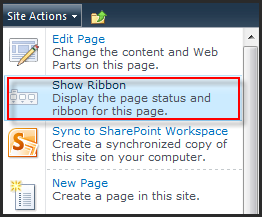
Okay, on each of site, it has a template to format the layout, that means the master page for it is different from normal or default. The Ribbon Menu is also customized. In Business Intelligence Center, the Ribbon is hidden,  let activate the Ribbon to work much more things on it.

Go to Site Action -> Show Ribbon:

It's really easier when the Ribbon Menu is on top. Just click on Edit button to SharePoint switch the web page to be editable and Edit Ribbon also. Then, click Edit page:

The site editable does not mean you can add anything into this site, you must check out this site first and then doing s.t. When you click on Add Web Part, SharePoint will ask you to want to Check-Out this site, then allow you insert WP, List,...etc.


Okay, you can do your task from now.

Tuesday, November 30, 2010

How to Disable Large List Resource Throttling in SharePoint 2010

Users of a site may require access to all the items in a list, even if that list’s views contain more items than have been allotted for the web application in Central Administration. The Resource Throttling options available allow administrators to set a block of time each day during which large list resource throttling does not occur. 


During this time, any user will be able to access the list and any views on that list without the list being throttled by the server. It is possible that during this time the server may take a performance hit while rendering huge amounts of data or if multiple users are accessing a large list simultaneously. Therefore, it is advisable to set the time window during off-peak hours, or when traffic to the server is at a minimum.


Setting the time block during which list throttling will not occur is done in Central Administration in the Resource Throttling options for each web application. The steps below outline the process for setting the daily time window:


  1. From the Central Administration homepage, click Application Management.
  2. Click Manage Web Applications.
  3. Select a Web application from the list.
  4. In the Ribbon, click the dropdown under General Settings.
  5. Click Resource Throttling.
  6. In the Daily Time Window for Large Queries section, check the box to enable the time window.
  7. Choose the hour that the time window should start, and select the number of hours it will remain open.


It is important to keep in mind the performance impact this could have on the servers, so set the time window accordingly. 


Another option available for some users (generally developers) who have certain privileges is to use the object model override to access the items in the list. This can be accomplished using Windows PowerShell or Visual Studio and allows users with proper rights access to a larger subset of items at a time, even if resource throttling is enabled. However, even with the object model override, users will still be restricted to the limit set for administrators and auditors. 


You should note the following when using the list throttling capabilities of SharePoint Server 2010:
The local server Administrator account is not affected by the list throttling settings. Therefore, the server Administrator has full, unrestricted access to the list. 


The Daily Time Window is not necessarily a hard cut-off time for access to the list. For example, if a user is accessing a large view of the list that is taking a long time to render, the list will finish loading even if the end of the Daily Time Window has been reached. Then, the list will be throttled once again.


Source: FROM Microsoft E-Learning

Monday, November 29, 2010

What about Web Analytics Reports in SharePoint 2010

If you are web master of web administrator, now you want to handle the traffic and bandwidth of your site, you may use Google Analytic. Everyday or everyweek (even for monthly) you will get the number of unique visitor, hits and the details of bandwidth of your site.

For now, you don't need to do that and even not necessary to  use extern service on your site. SharePoint 2010 supported a new feature to manage your site for web master. In fact, this feature has not supported full the control like Google Analytic, but in a simple way, you know at least the visitor worked on your site and to do something on it.

From the left menu, click on Monitoring -> Web Analytics Reports


For each site, SharePoint shows the traffic, search engine and inventory. When the customer use the search engine on your site, SharePoint crawls all the keywords, number of queries, the number of queries on day,...it's very helpful to web master or administrator who manage the site.


However, SharePoint does not collect the number of user browsing your site on what of browser, or the information of user using URL referer or directly from your site. Hope that, this may help you manage the site on SharePoint 2010 better.

In fact, you can customize this report or develop the report with much more functionalities. SharePoint 2010 will show the graphic UI for your report in the Customize Category.

Click on Customize Reports at the left bottom of the summary page. it redirects to a document library, here is the report list. It's hidden.


All information of report summary are here, now you could add more reports or everything you want.
The details of each report can be displayed as a graphic like this:


Yeah, that's perfect!

In the next post, I will show you how to add more the custom report and show it as UI graphic like SharePoint 2010.

Wednesday, November 24, 2010

How to change the limitation of number items in BDC using PowerShell

This is a good link to learn about using PowerShell Mangement (SharePoint Designer) with BDC in SharePoint 2010.

http://blogs.msdn.com/b/bcs/archive/2010/02/16/bcs-powershell-introduction-and-throttle-management.aspx

In Lionelro's topic, he explained and show you what about limitation of number items in BDC when you are using SharePoint Designer and PowerShell. However, I want to show you a short term to change the default limitation using PowerShell.


Start PowerShell Management

Run these scripts:

$dbRule = Get-SPBusinessDataCatalogThrottleConfig -ScopeDatabase -ThrottleType Items -ServiceApplicationProxy$bdcProxy 

#Default and Maximum must be provided together. This increases the limit for external lists to 3000.
Set-SPBusinessDataCatalogThrottleConfig -Identity $dbRule -Maximum 1000000 -Default 3000

Just execute above commands it will change the default limitation of number items when you get the data from BDC.

Good luck.

Friday, November 12, 2010

How to Customize the Document Set Ribbon

In this article, we will extend that sample by adding a new menu to download all files in the Document Set, check out selected files, check in selected files and send selected files as links.  We will walk through the example, and we will also provide a finished program and scripts that you can use to upload in your SharePoint server.

Here is Full Blog :

http://community.bamboosolutions.com/blogs/sharepoint-2010/archive/2010/11/12/sharepoint-2010-cookbook-customize-the-document-set-ribbon.aspx

Wednesday, October 13, 2010

Best Practices for Writing JavaScript in SharePoint 2010

JavaScript is an important part of building any interactive website, and SharePoint is certainly no exception. With SharePoint, JavaScript is often used to execute code on the client and it is usually designed to affect only one specific Web Part, as opposed to affecting an entire page. So, in a typical SharePoint page where there are many Web Parts in a zone, it's very easy to mistakenly write Java code that affects another Web Part.  The potential for such conflicts is unavoidable, so this article details some best practices for working on JavaScript and SharePoint Web Parts in SharePoint 2010.

http://community.bamboosolutions.com/blogs/sharepoint-2010/archive/2010/10/14/best-practices-for-writing-javascript-in-sharepoint-2010.aspx


Full article here